
Live editor (PWA)
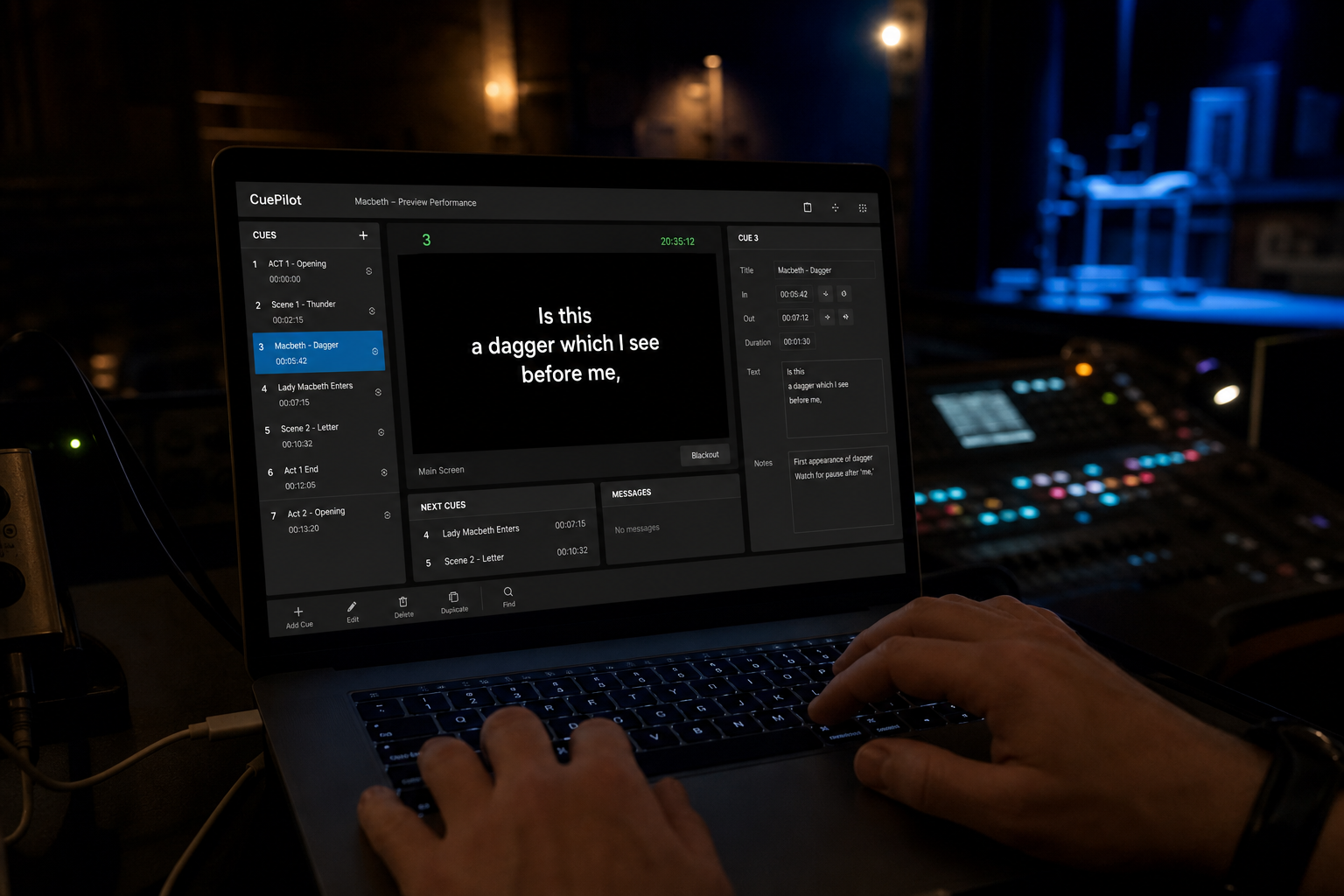
The live editor at plive.supertitles.gr runs as a progressive web app — in the booth, on a laptop, with or without a stable connection. It is built exclusively for surtitles in theater and opera: cue control, multi-screen projection, and text workflows shaped by hundreds of live performances.
Install & offline
Install the app on the booth machine and keep working when the network drops.
- Installable PWA — add to desktop from Chrome for a dedicated booth window
- Offline cache — service worker keeps the editor available without a live connection
- Load from cloud — open organization → project → file from the platform
- Local .jstp files — open, save, and save-as on disk via the browser file picker
- Sync with cloud — save back to the platform; conflict detection if the cloud copy changed
Live performance control
Switch between edit and play modes without leaving the show file.
- Play / Edit modes — rehearse in the grid, then run the show from the same file
- Cue-by-cue projection — advance rows with keyboard or mouse; instant or faded transitions
- Show / hide output — blank or restore projection without losing your place
- ON AIR preview — booth preview of what is on screen, with adjustable text size and height
- Performance timer — editable show clock with step forward/back and play/pause
- Undo — step back through layout and formatting changes
Multi-column text grid
One file, many languages and column types — text, comments, and line numbers.
- Multi-language columns — Greek, English, and more side by side
- Role names, comments & placeholders — structured markup for opera and drama scripts
- Custom classes — reusable styles applied to selected text
- Inline formatting — bold, italic, and extended cell editor (F2)
- Row & cell tools — copy, paste, merge, and grid hints for fast booth edits
- Search — find text across the file (Ctrl+Shift+F)
- Per-column options — word wrap, RTL, hide column, character limits
- Adjustable grid size — enlarge or shrink booth text for readability
- Delete empty lines — clean up imported scripts in one action
Desktops & projection panels
Map content to multiple projectors, side screens, or languages.
- Multiple desktops — separate projector windows (popup), each with its own background
- Drag-and-drop layout — assign desktops to screen slots and reorder visually
- Panels per desktop — link each panel to a language column
- Layout tools — drag panels, borders, and alignment pattern for positioning
- Full typography — font family (including local system fonts), weight, size, colour
- Alignment & transform — text alignment, rotation, scale X/Y, 4-corner correction (keystone)
- Text effects — shadow, outline, background box with opacity
- Custom CSS — per desktop and panel for projection-specific styling beyond the standard controls
- Panel sizing — precise width, height, and position on each desktop
- Position desktop — place projector windows on the correct display before the show
- Network projector shutters — configure IP and shutter commands per projector; open or close all shutters from the editor (via local control agent)
Autocue
For recitative, long speeches, or pre-timed scroll — without a separate operator display.
- Autocue panels — mark any projection panel for automatic scrolling
- Play / pause & speed — slider and keyboard ([ ] ) for forward or backward scroll
- Synced to show row — autocue follows the current cue in the file
SRT timing
Record, import, and play back timing tracks alongside your surtitle text.
- Multiple SRT tracks — per file, with load/save and starting time offset
- Record / pause / download — capture timings during rehearsal or performance
- Playback — run recorded or imported timings in the editor; cues follow timestamps during rehearsal or show
- Import & export .srt — per column, alongside .txt workflows
Import & export
Move scripts in and out without retyping.
- Word (.docx) import — map columns from a table document
- .txt import — one file per language column
- .srt import — timed text per column
- Export to .txt — download any column
- Export to Word — multi-column .docx table for translators and dramaturgs
- Rename & save-as — duplicate files on the platform from the editor
Keyboard shortcuts
Designed for hands on the keyboard during a live show — arrows for cues, Enter to project, F2 to edit, Ctrl+Z to undo, and more.
Cloud platform
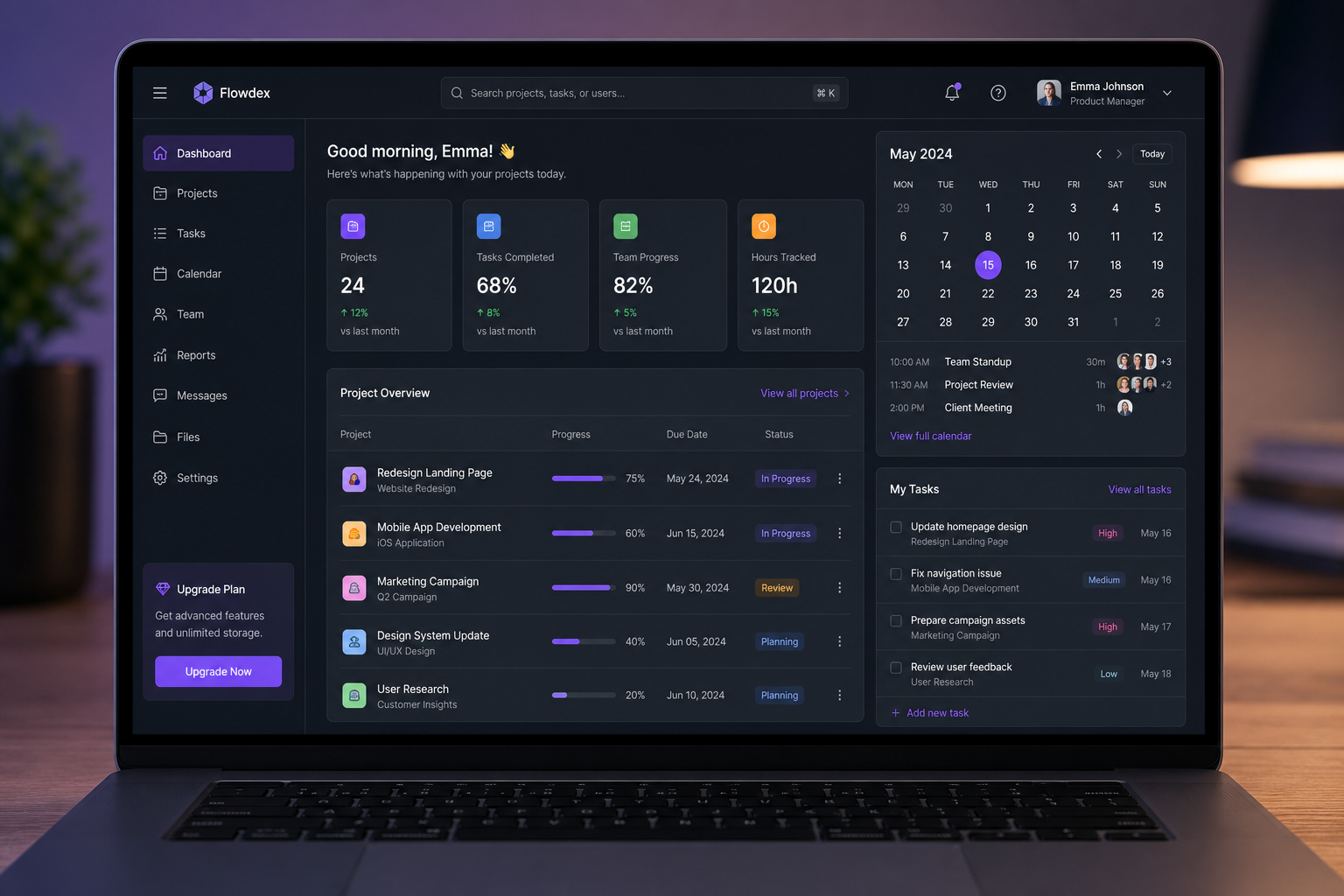
Access the platform at p.supertitles.gr. This is where organizations manage their work before and between performances.
- Organizations, venues, and projects in one structure
- Performance dates and scheduling calendar
- Team roles: admin, editor, viewer
- Assign operators to projects or specific performance dates
- Activity logging and file management
- Multi-language project titles
- Google Calendar sync for operator schedules
Audience streaming Expanding soon
From the live editor, operators can start and stop streaming so surtitles reach audience devices in real time — useful for festivals, touring shows, and venues exploring personal screens. We are currently rolling out our first seat-back monitor installation; this section will grow as that deployment goes live.
For now, the core strength of the software remains live projection and operator control in the venue.
See it on your own material
We can walk you through the editor and platform with a demo account.